

Wallet pass notifications let you send timely messages to customers who have added an event ticket, loyalty card, membership pass, coupon, or another digital pass to Apple Wallet or Google Wallet.
With Passlet, you can send a wallet notification to:
- One individual pass
- Multiple selected passes
- Every issued pass in a project using a broadcast
You can deliver the message immediately or schedule it for a future date and time.
Quick answer: To send a wallet pass notification in Passlet, open an issued pass, select the Notifications tab, and click Send notification. To notify a segment, select issued passes on the Passes screen and click Notify. To reach every issued pass in a project, open the project and create a Broadcast.
For the complete product reference, see the Passlet wallet pass notifications guide.
What are wallet pass notifications?
A wallet pass notification is a message associated with a digital pass saved in Apple Wallet or Google Wallet. It reaches the pass holder through the wallet already installed on their phone, without requiring them to download your own mobile app.
The customer experience differs by platform:
- Apple Wallet: Passlet updates a dedicated field on the pass. Apple Wallet can display the update as a Lock Screen notification, and the latest message remains available on the back of the pass.
- Google Wallet: Google displays a push notification and adds the message to the pass in Google Wallet. You can also provide an optional title that appears above the message.
The pass must be issued, the customer must have added it to their wallet, and wallet notifications must be enabled on their device.
An important Apple Wallet policy distinction
Apple Wallet change notifications should be reserved for important, time-sensitive pass updates. Apple's current Human Interface Guidelines state that change messages should not be used for marketing or other noncritical communication.
This means messages such as venue changes, delays, balance adjustments, and urgent membership updates are appropriate Apple Wallet use cases. Pure promotional campaigns should generally target Google Wallet or use another consented marketing channel.
Apple describes loyalty passes as an engagement tool for customer updates, offers, and real-time communication, but its current change-message guidance is more restrictive. When the guidance overlaps, follow the stricter rule. Review the Apple Wallet Human Interface Guidelines and Apple's loyalty pass overview before running a campaign.
Why wallet pass notifications are valuable
Wallet passes occupy a useful position in the customer journey. The customer has already chosen to save the pass, so the relationship is more intentional than an untargeted advertising impression.
A relevant notification can help a business:
- Bring customers back to a store or venue
- Increase reward and coupon redemption
- Reduce event no-shows
- Communicate operational changes quickly
- Increase attendance at member events
- Remind customers about expiring benefits
- Improve the usefulness of a loyalty or membership program
- Reduce support requests caused by outdated information
- Create additional sales opportunities on Google Wallet
- Maintain engagement without requiring a dedicated mobile app
The key word is relevant. Wallet notifications are most effective when they help the holder take an immediate action connected to the pass.
What the research says about wallet notification performance
Published case studies show that mobile wallet notifications can contribute to store visits, offer redemption, engagement, and revenue. However, results vary by audience, offer, timing, and measurement method.
Pets Place: Nearly one-third visited a store after a notification
In an initial Pets Place test, nearly 60% of premium members added the loyalty pass to Google Wallet. Nearly one-third of Google Wallet members visited a store to redeem an offer within three weeks of receiving a targeted push notification.
This is particularly relevant for loyalty programs that want to convert member data into measurable store traffic. Read the Pets Place and Google Wallet case study.
San Francisco Zoo: 75% open rate and 400% more interactions
San Francisco Zoo reported a 75% push notification open rate, with most opens occurring within 30 minutes. It also reported a 400% increase in member interactions. One member-exclusive event generated more than 200 RSVPs after a notification, compared with 40 to 50 previously.
This illustrates the potential value of wallet notifications for membership organizations, attractions, museums, and events. See the San Francisco Zoo and Google Wallet case study.
Salomon: Three times higher revenue and 54% more items per order
Salomon compared its Google Wallet campaigns from September through December 2024 with the corresponding 2023 period. Campaigns combining a digital loyalty pass with push notifications reported three times higher revenue and more than 54% more items per order.
This supports the role of wallet messaging within a broader loyalty and customer engagement strategy. Read the Salomon Google Wallet case study.
Kiehl's: 65% redemption and 115% of the CRM sales target
A Kiehl's campaign using personalized offers and timely Google Wallet notifications reported a 65% redemption rate and achieved 115% of its CRM sales target.
The result suggests that a wallet pass can become an active CRM touchpoint when offers are relevant and redemption is easy. See the Kiehl's Google Wallet case study.
Controlled loyalty research: 14.02% spending lift
A peer-reviewed field study followed 46,504 loyalty-program participants across 11,895 stores. A randomly selected control group stopped receiving push messages after the third program week.
The researchers estimated that the continuing push plan produced:
- A 14.02% lift in customer expenditure during the remaining 11 program weeks
- A 105.8% increase in stamps redeemed relative to the simulated control baseline
- A positive incremental profit after accounting for the additional cost of redeemed rewards
The strongest spending response came from customers with higher pre-program spending. The researchers also found diminishing returns from sending more messages.
This study examined mobile app push notifications rather than wallet-specific notifications, but its controlled design provides useful evidence about timing, frequency, and loyalty behavior. Read the peer-reviewed loyalty push notification study.
How to interpret these results
The Google Wallet examples are case studies, not universal benchmarks. Some evaluate an entire wallet loyalty program rather than isolating the notification as the only cause.
Use them as evidence that wallet notifications can create measurable value, not as a promise that every campaign will produce the same result.
Choose the right notification scope in Passlet
Your objectivePasslet featureWhere to startNotify one customerSingle pass notificationPass details, Notifications tabNotify a specific customer segmentBulk notificationPasses screenNotify every issued pass in a campaignProject broadcastProject details, Broadcasts cardTrigger notifications programmaticallyPasslet APIPass notifications API guide
Only issued passes can receive notifications. Learn more about issuance and pass statuses in the Passlet issuing passes guide.
How to send notifications to Apple Wallet and Google Wallet passes with Passlet
Passlet makes it possible to send Apple Wallet and Google Wallet notifications without building your own wallet messaging infrastructure. You can notify one pass holder, send the same message to a selected group of passes, or create a broadcast for every issued pass in a project.
All three options use the same notification composer. You can write a message, select Apple Wallet, Google Wallet, or both, add an optional Google Wallet title, and send immediately or schedule the notification for later.
Send a notification to one wallet pass
A single-pass notification is useful when the message applies to one customer, ticket holder, loyalty member, or guest.
To send one:
- Open Passes in Passlet.
- Select the issued pass you want to notify.
- Open the Notifications tab.
- Click Send notification.
- Write the message, select the wallet platforms, and send or schedule it.
Examples include a personal seat change, an individual loyalty reward, a membership reminder, or updated appointment information.
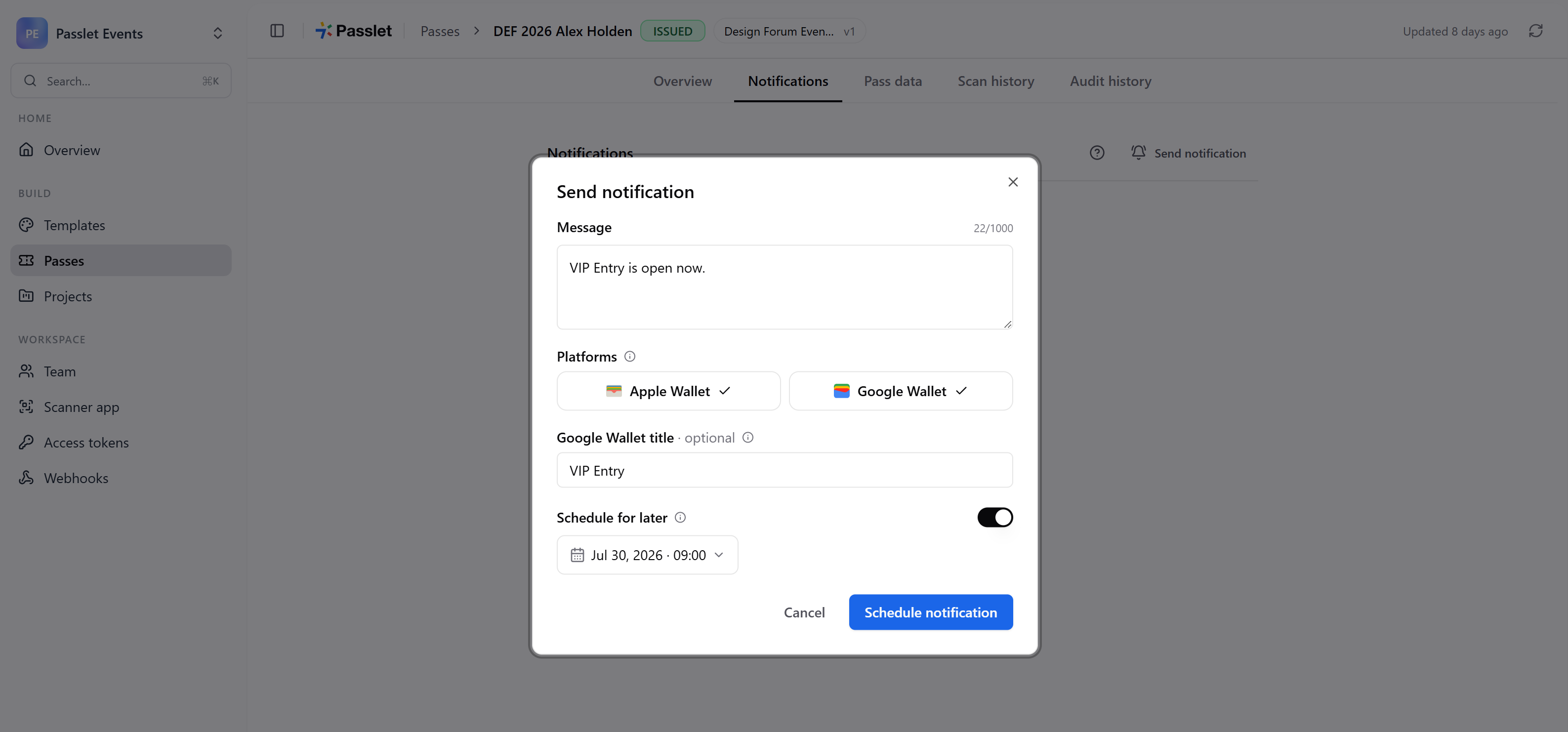
The notification is added to the pass timeline, where you can review its status and see whether Apple Wallet, Google Wallet, or both were selected.
Send a bulk notification to multiple wallet passes
Passlet also lets you send the same notification to multiple selected passes. This is useful when a message applies to a specific customer segment but not to everyone in a project.
For example, you could notify:
- Attendees assigned to a particular entrance
- Loyalty members with an expiring reward
- Customers affected by a regional service change
- Members in a specific program tier
- Ticket holders attending one session
Open the Passes screen and use filters to find the relevant issued passes. Select the passes using the row checkboxes, then click Notify in the bulk action bar.
Passlet shows the number of selected recipients in the notification dialog. After writing the message, you can send it immediately or schedule it for later.
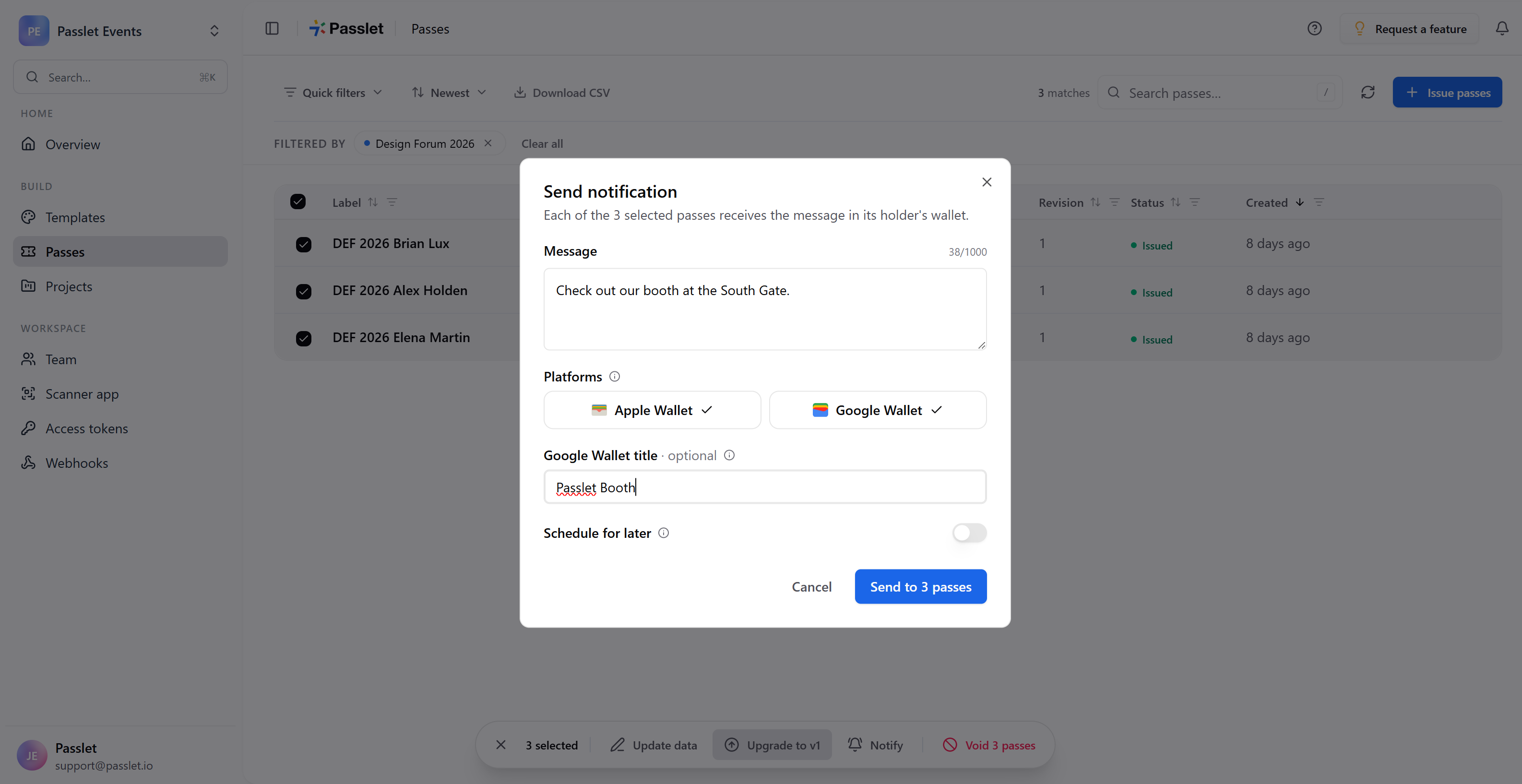
Passlet creates an individual notification for every selected pass. This gives each pass its own notification history and processing status.
Broadcast a notification to every pass in a project
A broadcast sends one message to every issued pass in a Passlet project. It is the simplest way to notify an entire event audience, loyalty program, membership group, or customer campaign.
Broadcasts are well suited to messages such as:
- Event-wide schedule changes
- Venue or opening-hour updates
- Loyalty-program announcements
- Membership reminders
- Service interruptions
- Campaign messages for an entire project
To create a broadcast, open Projects, select the relevant project, and find the Broadcasts section. Click New broadcast, write the message, select the wallet platforms, and choose whether to send now or schedule it.
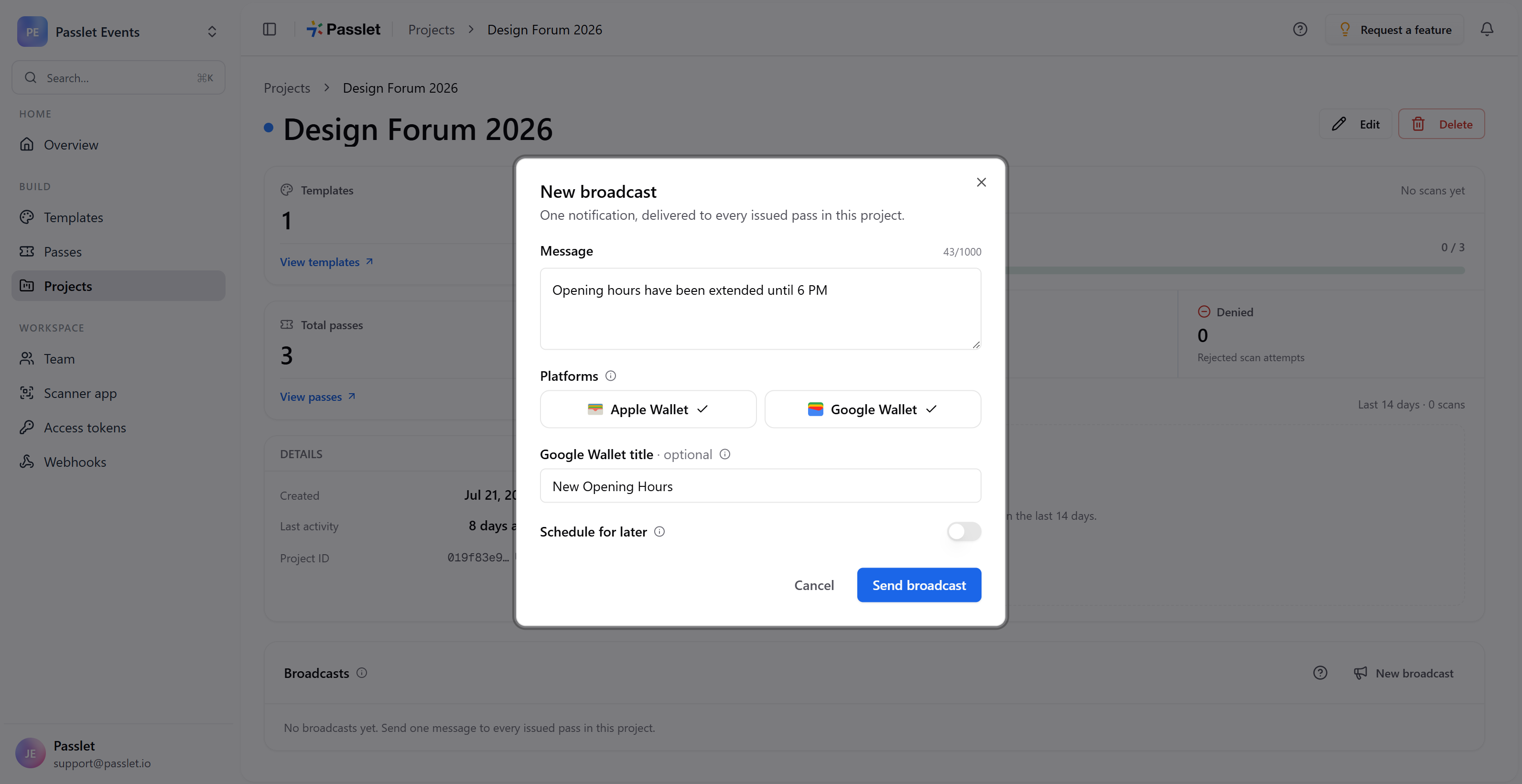
A broadcast targets every pass that is issued when sending begins. If a broadcast is scheduled, passes issued before the scheduled send begins are included. Passes issued after sending starts do not receive that broadcast.
The Broadcasts section shows previous messages and whether a broadcast is scheduled, sending, or sent to the reported number of passes.
Send now or schedule for later
Whether you notify one pass, several selected passes, or an entire project, Passlet gives you the same core options:
- Write the wallet notification message
- Select Apple Wallet, Google Wallet, or both
- Add an optional Google Wallet title
- Send immediately
- Schedule the notification for a future date and time
Wallet notifications are delivered on a best-effort basis. Apple and Google do not guarantee that a notification will appear on a particular device, and customers can disable notifications in their device settings.
For complete instructions and platform details, read the Passlet wallet pass notifications documentation.


